
Start free, upgrade only if needed
The relief path costs nothing and finishes in seconds. Switch to AI reconstruction only when a flat plaque is not the result you wanted.
PHOTO TO 3D PRINT
Two ways to print a photo: a relief plaque you can hold, or a full AI-reconstructed 3D model with a real back and sides. Preview both here before choosing.
Upload once and a printable relief STL starts building in this browser. Best for logos, portraits, terrain, signs, and lithophanes.
Printing a photo means picking between two very different outcomes. A relief plaque extrudes brightness into height and gives you a flat-backed panel in seconds, free and entirely on your own device. AI reconstruction sends the photo to a generative model and returns a closed volume you can view from any angle, which is what you need when the subject should look like an object rather than a carving. This page starts on relief, tuned for photographs, with the AI path one click away.
PHOTO TO 3D PRINT
Drag in a PNG, JPG, or WebP, paste from the clipboard, or start from a built-in sample.
Type the width, height, relief depth, and base thickness in millimetres and watch the mesh rebuild live.
Read the open-edge and manifold report, then export a binary STL straight into your slicer.
The relief path costs nothing and finishes in seconds. Switch to AI reconstruction only when a flat plaque is not the result you wanted.
Smoothing and contrast open at values that suppress JPEG noise while keeping faces readable, so the first build is already usable.
Both paths run the same six diagnostics, so an AI mesh with holes is flagged here rather than discovered mid-print.
Every slider rebuilds the real mesh in a worker thread. What you orbit is the file you download.
Width, height, relief depth, and base thickness are typed in real units, so the plate fits your bed the first time.
Open edges, non-manifold edges, degenerate faces, triangle count, volume, and bed contact are all reported.
Relief, lithophane, viewer, and converter work never leaves the browser. Only AI generation uploads anything.
Export binary STL, GLB, glTF, OBJ, or PLY, and convert between them without installing a modelling suite.
Unlimited local conversion with no watermark, no daily cap, and no account. Credits apply only to AI generation.
Relief mode extrudes brightness into height. AI mode reconstructs a full closed volume.
| Relief / Lithophane | AI 3D Object | |
|---|---|---|
| Best input | Logos, line art, portraits, terrain, height maps | Product shots, characters, props, toys |
| Output shape | Raised plate with a flat back | Closed volume with a real back and sides |
| Typical wait | Under 3 seconds | 40 seconds to 4 minutes |
| Where it runs | This browser only | Uploaded to the model provider |
| Cost | Free and unlimited | From 8 credits per model |
Four builds produced with the presets on this page, exported as printed.
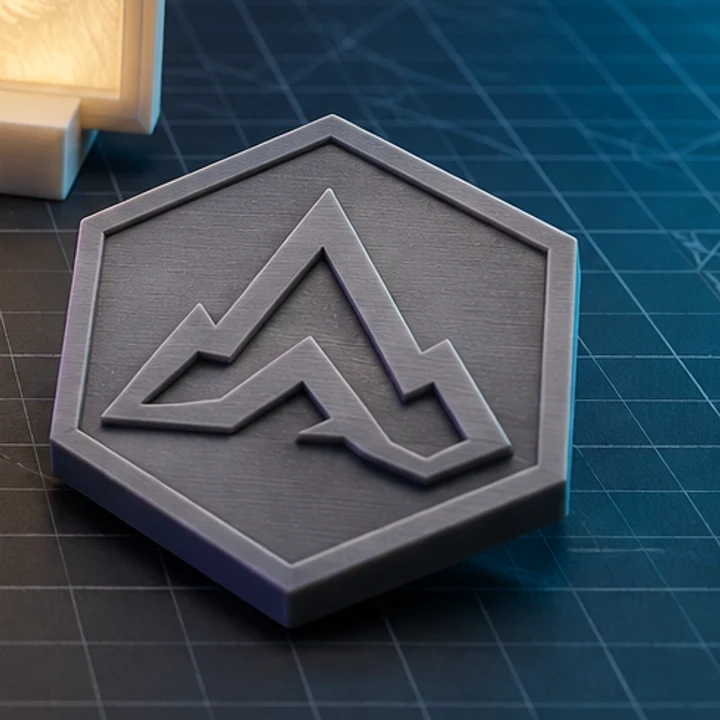
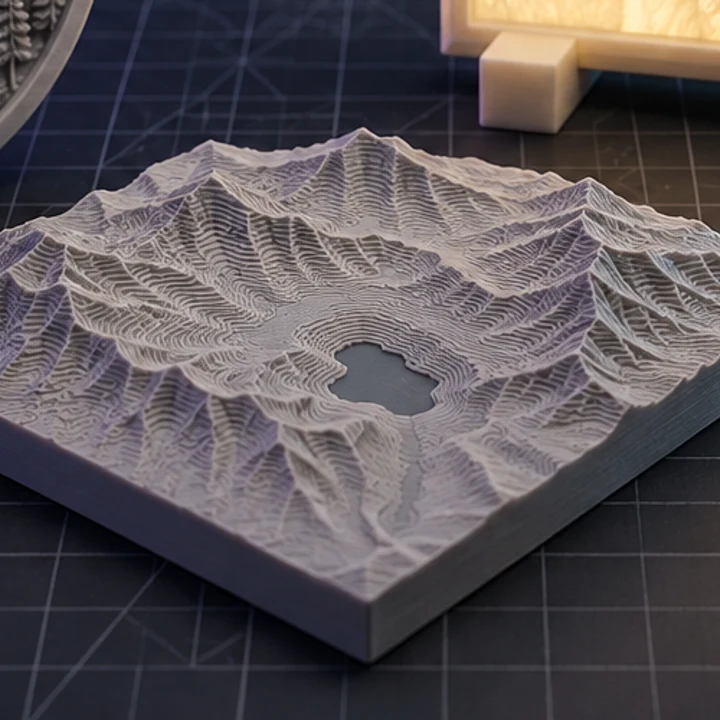
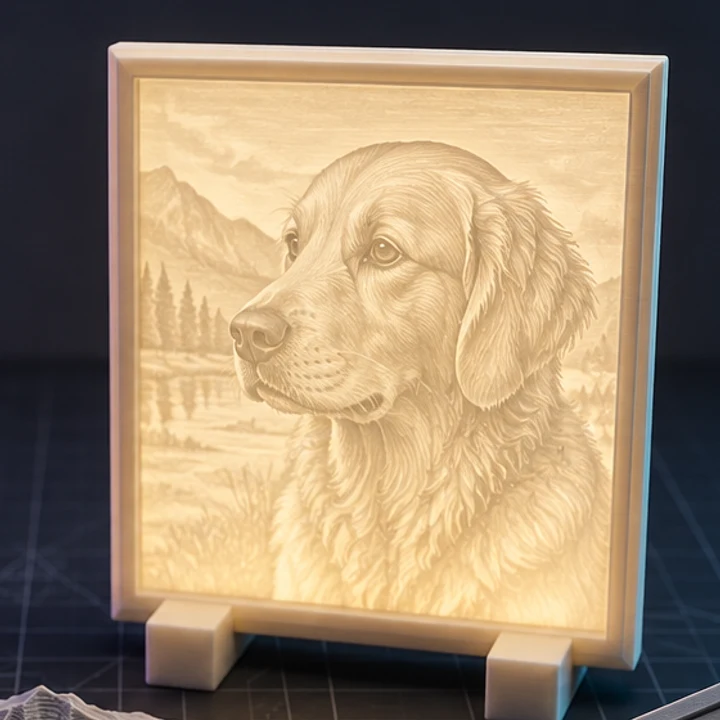
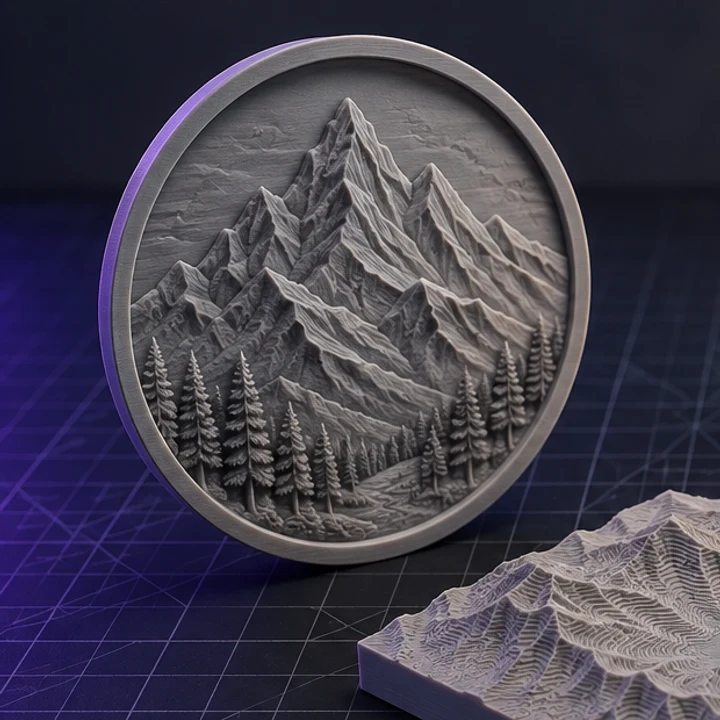
Choose relief when the photo is essentially flat art, or when the result is meant to hang on a wall or sit in a frame. Choose AI when the subject is a physical object you want to see from every side, such as a product, a figure, or a prop.
It will attempt a full head from a single photo, but anything the camera never saw is inferred. Expect the back of the head to be plausible rather than accurate. Adding back and side views with the multi-view tier improves it substantially.
Quick returns a preview in roughly 40 to 90 seconds. Pro Textured and Pro Multi-view usually take two to four minutes because they run a heavier reconstruction and bake materials.
Yes. The generated model can be exported as STL for printing, or as GLB when you want to keep the AI-generated textures and materials for rendering. STL stores geometry only.
One complete Quick generation is included without an account so you can judge the output before paying. Further generations consume credits, and failed upstream generations are refunded automatically.
Jump straight to the converter tuned for your source file.
Relief and lithophane conversion is free, unlimited, and runs entirely in this browser. AI reconstruction starts with one free trial model.